
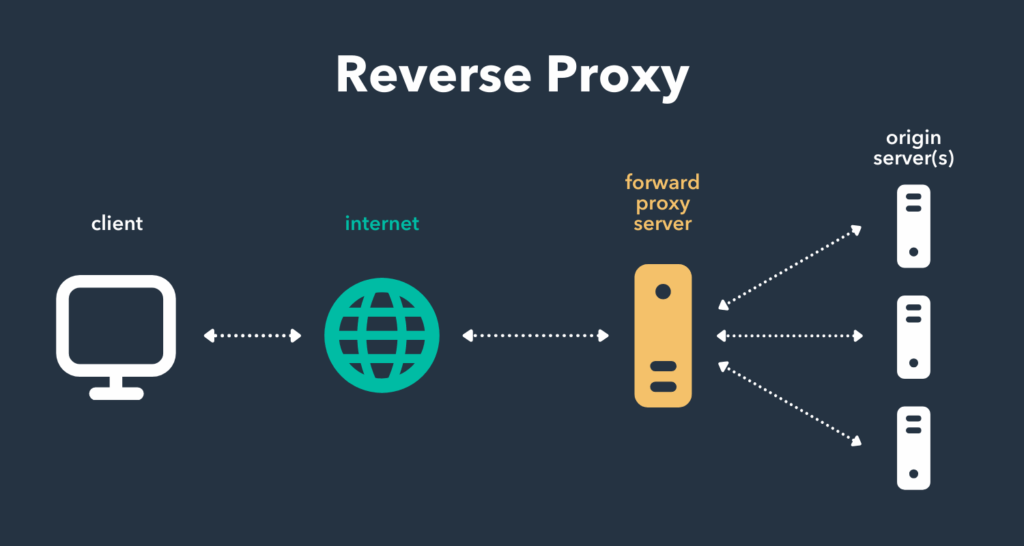
Reverse proxies are really simple. They sit in front of your app and route it accordingly. A reverse proxy can run on the same machine as the rest of your services. Typically what you’d do is run a reverse proxy server such as traefik in Docker as a container and add it to a network called “traefik” or “reverse-proxy” or something. You’d then run say your node app in Docker and not expose or publish the port. You can then add it to the “traefik” or “reverse-proxy” network and edit the reverse proxy configuration file – in traefik it’s slightly different. Let’s see an example.
---
services:
    reverse-proxy:
        image: caddy
        restart: unless-stopped
        container_name: caddy
        ports:
            - 443:443
            - 80:80
        # Bind a file called caddy on our local machine to the docker container
        # This means if we make changes to the local file on our host machine it'll change inside the docker container
        # It's like port mapping but for files and folders
        # The :ro isn't necessary but it means the Docker file has 'ready only' permission, you could also do :rw and other things
        volumes:
         - ./Caddyfile:/etc/caddy/Caddyfile:ro
        networks:
            - reverse-proxy
    # Create new custom network
    networks:
        reverse-proxy:
            driver: bridge
Now we have Caddy in a compose file we can run sudo docker compose up -d.
Next we can get our Enclosed from earlier:
services:
  enclosed:
    image: corentinth/enclosed
    ports:
      - 127.0.0.1:8787:8787
    volumes:
      - ./data:/app/.data
    restart: unless-stopped
Let’s add it to the Caddy network:
services:
  enclosed:
    image: corentinth/enclosed
    ports:
      - 127.0.0.1:8787:8787
    volumes:
      - ./data:/app/.data
    restart: unless-stopped
    networks:
        - reverse-proxy
networks:
    reverse_proxy:
        type:
            external: true
Great! We can now remove the port mapping, I’ll just comment it out:
services:
  enclosed:
    image: corentinth/enclosed
    container_name: enclosed
    #ports:
    #  - 127.0.0.1:8787:8787
    volumes:
      - ./data:/app/.data
    restart: unless-stopped
    networks:
        - reverse-proxy
networks:
    reverse_proxy:
        type:
            external: true
Now we can edit the caddyfile, it’s soooo simple.
Find your caddy file, open it up in a text editor and enter the following:
example.com {
	reverse_proxy enclosed:8787
}
Save it and restart the caddy docker container with sudo docker compose restart. Now Caddy is running on port 80 and port 443. Make sure to expose these on your firwall and enjoy!
All you need to do is grab a domain and add an A record where the IP is your server’s IP. It’s THAT simple. You can now run tonnes of Docker containers and add them to the caddy network. You can then edit the caddyfile and configure your domain and the docker container to route it to.
You can also use subdomains such as
enclosed.example.comand thennodeapp.example.com. Subdomains are free and they’re really useful if you don’t want to buy a new domain for each service you run. You will need to add your subdomain as a DNS record entry though. Simple go to your DNS provider and set the host to your subdomain instead of blank or@and then add your IP. Simple, simple, simple.
I’ve skipped over a few concepts here such as the fact reverse proxies can run on separate servers and then route to different origin servers like they do in the diagram. This not only protects the origin servers (as only the reverse proxy knows where they are) but it allows for something called load balancing.
Load balancing and a little more on reverse proxies
Simply put your site could eventually struggle to deal with all that traffic. You could put a reverse proxy on a separate server which lives in front of your origin servers. You could then have say 3 different servers all running Enclosed or whatever you want to run. The reverse proxy can use various algorithms to route your traffic to them and spread out the load so it’s not all on one server.
One of those algorithms is called Round Robin – this will simply send the first request to origin server 1, the second request to origin server 2, the third request to origin server 3, the fourth request to origin server 1, the fifth request to origin server 2, etc, etc.
There’s a plethora of algorithms out there, certain ones can find the least “stressed” server and send traffic there etc. There’s so many. But reverse proxies are good for several things, not just routing http/s traffic to Docker containers to prevent having loads of ports flying everywhere.
SSL certificates
Caddy can automatically provision you with an https connection, meaning all your traffic is encrypted and can only be read by yourself and the server. I don’t use Caddy anymore but a few years ago this was the command: sudo docker exec -it caddy caddy trust. I cannot comment on whether that will work anymore, you’ll have to read the docs. For reference that command executes (exec) with an interactive shell (-it) a docker container with “container_name: caddy” and then runs the command caddy trust. I haven’t spoken much about docker-cli commands here as we don’t have time but that’s the basics. You could even run sudo docker exec -it caddy bash to be dropped into the shell of the container. Or you could run sudo docker exec -it caddy ls to just list the files in the container.
Closing thoughts
The Docker compose files I wrote in this section ,like most of this guide, are examples to explain a point. I haven’t used or tested them, I am not sure if those are the names of the official image, I just made them up. Lookup a guide on containerising Caddy if you need to. I will stress that Caddy wasn’t meant to run as Docker container though and it’s discouraged. traefik is the way to go find more info here.